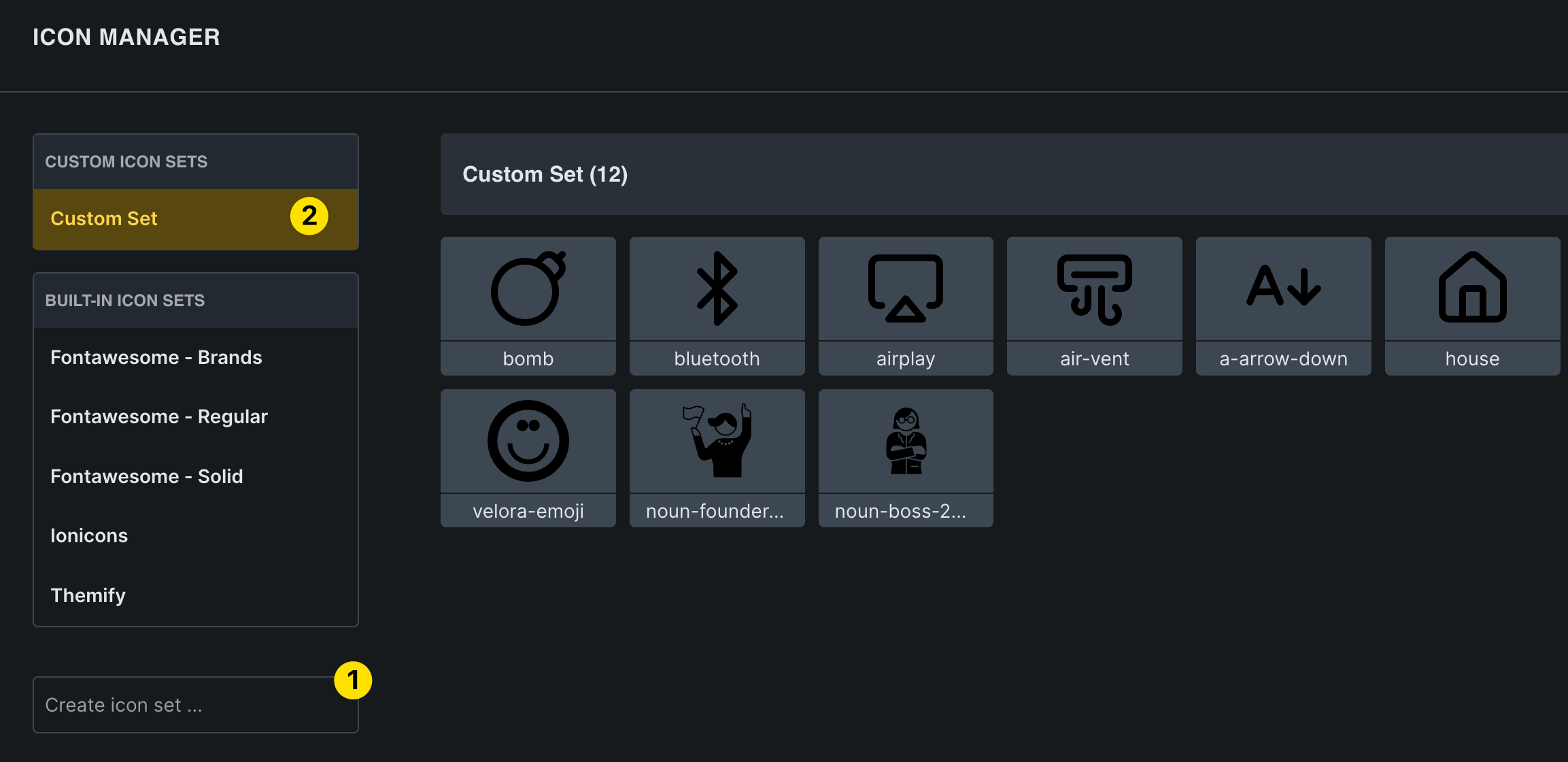
Unfortunately, I cannot reproduce the issue. The SVGs are showing up instantly without any problems. What happens when you save and reload the builder?
Please feel free to send us your login details so that we can reproduce the problem in your installation.
Regarding the other points:
The link between the icon property and the SVG may be somewhat confusing and could possibly be simplified. I’ll create an improvement task for it.
Inherited settings indicator not showing: Yep, that could/should also be improved. I have created a separate task for this as well.
I’d tried this process twice before recording the video, both times the SVGs didn’t appear, which led me to think it must be a bug. I didn’t think to reload the builder.
I think that particular issue is now solved.
Regarding another issue I showed:
Is it expected that on a regular SVG element you can’t choose your SVG via the Source > Icon Set method but you can (and actually have to) when it’s a component?
I know you said you’ve created an improvement task for it, which is great. I just wanted to get clear on it.
I’m mindful of the fact I’m also teaching others, so at the moment it seems my advice to them would be:
If a regular SVG element - you have to choose/upload via the Source > File method (Icon Set doesn’t work)
If a component property - you have to choose/upload via the Source > Icon Set method.
Yeah, that’s the only way to connect it. In general, “icon set” is confusing because you select the source on the instance, and there you can simply select “SVG” again. Alternatively, you can use the icon element, which appears to be less confusing.