Browser: Chrome 110
OS: Windows
Bricks: v2.0
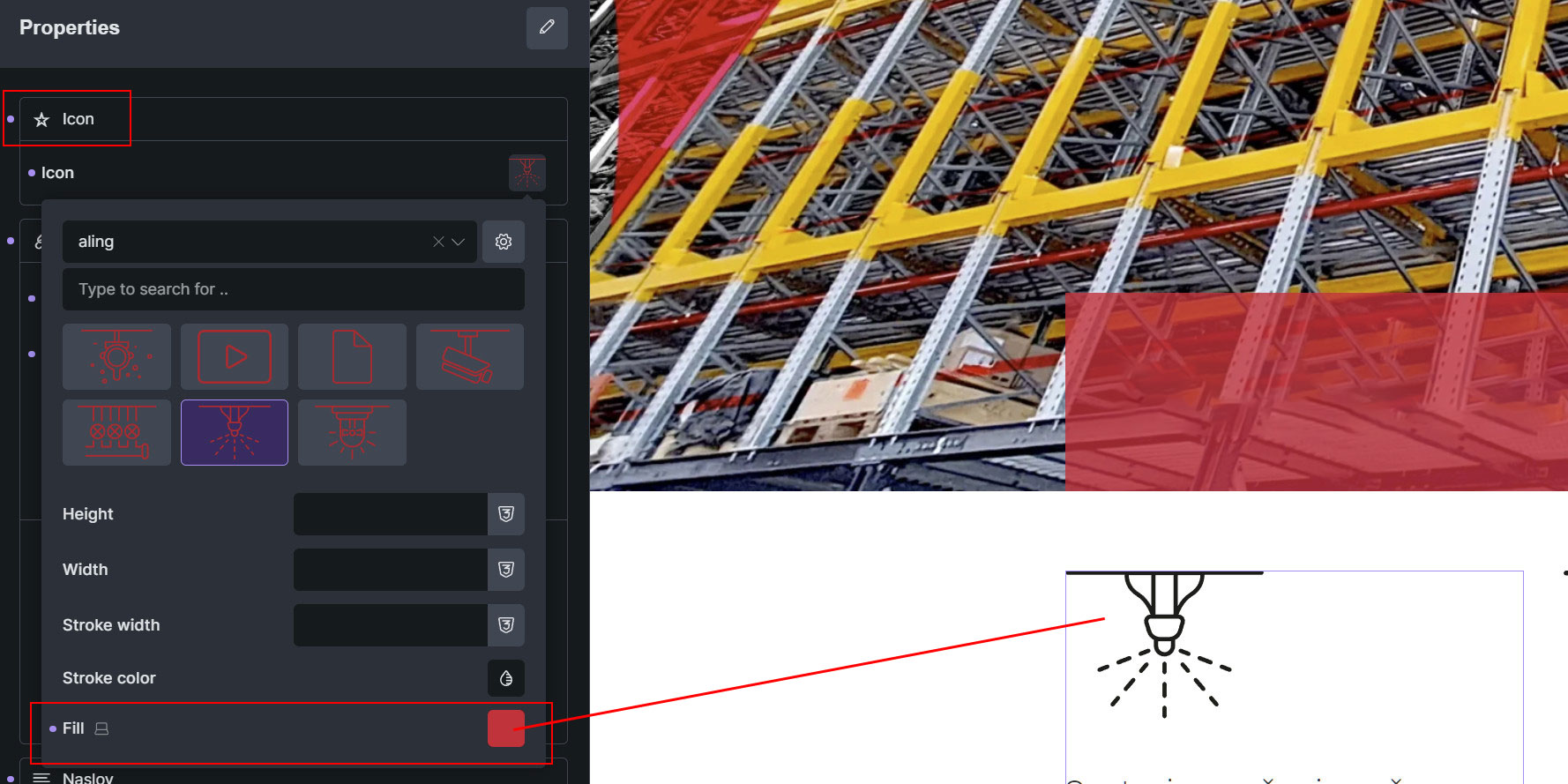
Custom SVG icon does not display fill colour.
Colour remains black.
Browser: Chrome 110
OS: Windows
Bricks: v2.0
Custom SVG icon does not display fill colour.
Colour remains black.
Hi,
Thank you for your report!
Unfortunately, I cannot reproduce the problem. Would you please provide us with a link to the website, the SVG (which is more often the culprit), and specific steps or a screencast (jam.dev)? Thank you!
Best regards,
timmse
Thank you for fast reply.
Please find attached screenshot.
The icon is part of a Component but I tried with a separate element and it also doesn’t show the fill color
It worked fine in Bricks version 1.12.4
Current web is on LocaWP
You are welcome to use a try.bricksbuilder.io installation to reproduce the problem, or export the component and attach it here, as I still can’t replicate it, or don’t know exactly how to.
Not sure if this is your case, however I had the same issue, but this appeared to be caused by cache. Test it in incognito or purge all cache incl server and browser.
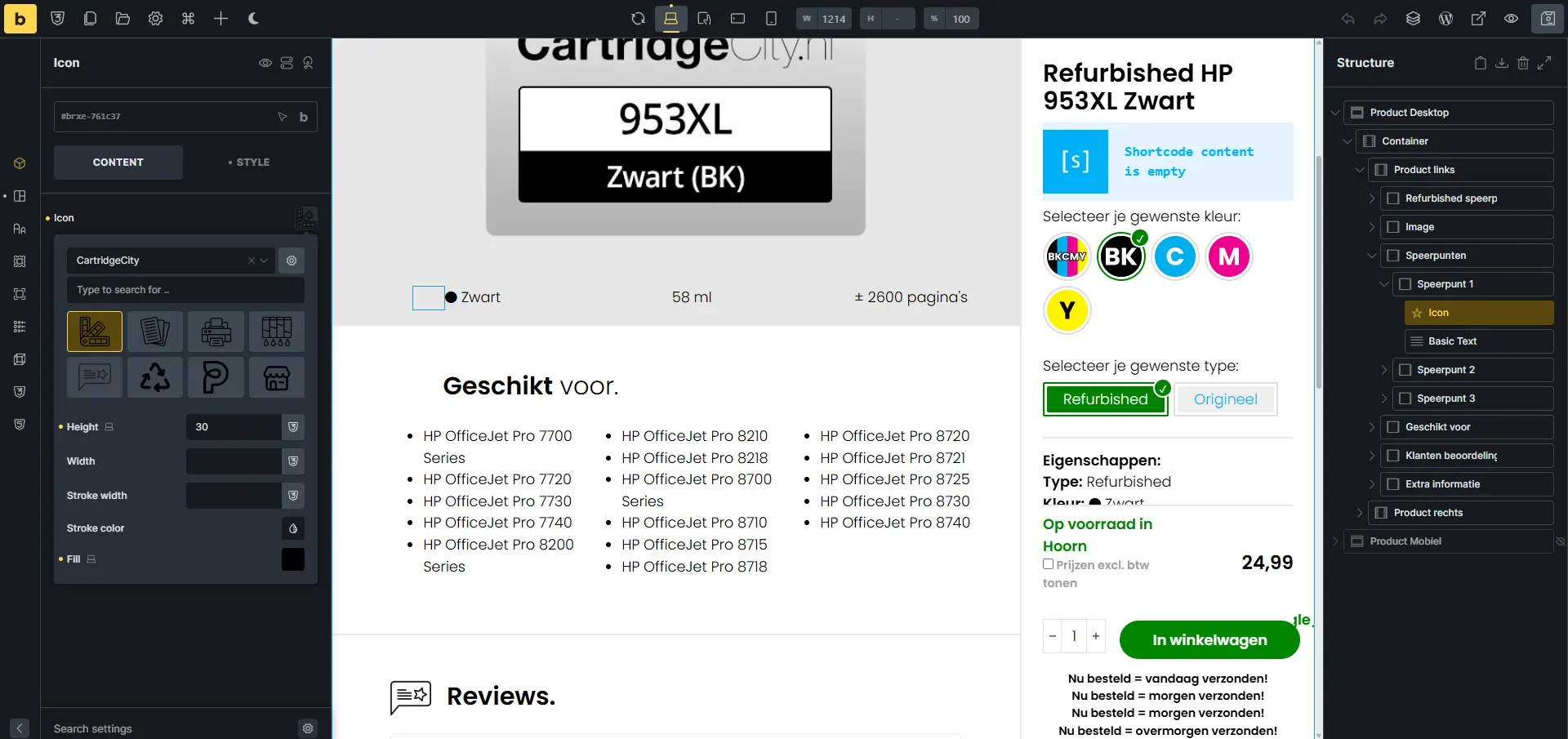
I have a similar problem. See screenshot. When I use my own SVG files as icons, they’re no longer visible on the site since version 2.0.
4 out of 5 are missing.
One of you needs to provide me with a live link so we can move forward 
Hello timmse,
If you need admin access let me know!
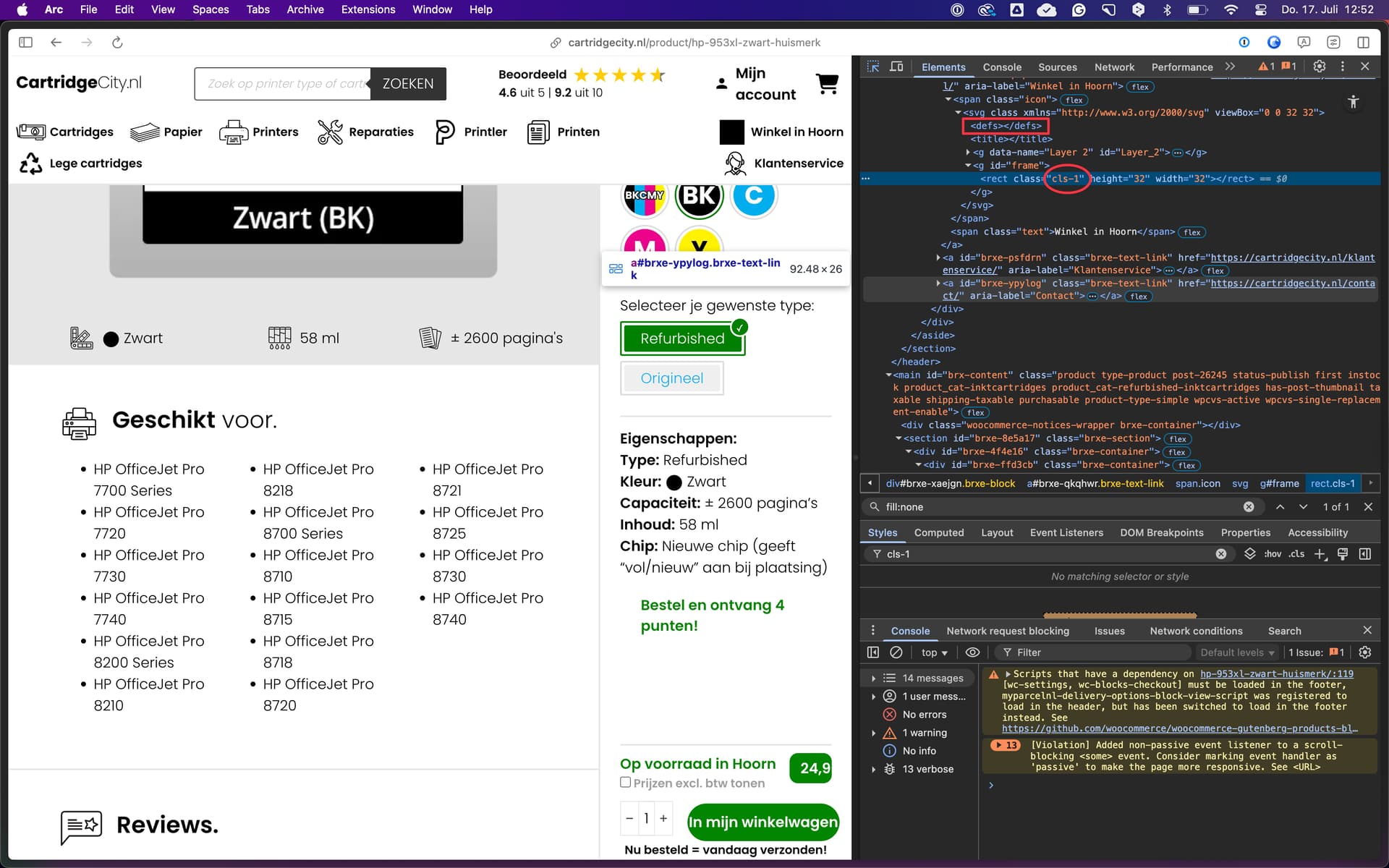
Thanks for the link! All of your SVGs share the same .cls-1 class, and each of them has a <defs> tag containing a style tag with different styles applied to that class: some of them use fill:none, some use stroke-width: 0.
You should manually clean up your SVGs by removing the inline styles and classes. Once everything is removed, the icons show perfectly fine. As far as I can see, this has nothing to do with the update to 2.0.
Thanks for looking. Wierd thing is that it only happend once I updated to 2.0.
Thank you for your help will look in too the class styles.
Oh, and while you’re at it, remove the IDs as well, to prevent any potential problems.
This kind of problem has existed for as long as I can remember, but there’s nothing we can do since we’re not the SVG provider, and almost no SVG is the same. It would also happen in a basic HTML file. Take a look here:
https://forum.bricksbuilder.io/search?q=svg%20inline%20style%20no%20bug
I “Factory reset” the SVG file in Affinity Designer 2 and it behaves as it should again.
Thank you for your help!
Thanks for your help.
Something is definitely with the SVG file (although it worked on the previous version of Bricks)
I optimized the SVG file through online optimiser.
Opened it again in a graphics editor (left the color #000000) and saved it under a different name.
Now it works.
Okay, cool. To be honest, I can’t imagine that the exact same scenario worked in a previous version, or rather, I don’t know how to reproduce the problem.
You are welcome to provide us with a temporary installation with 1.12.4 in which the SVGs no longer work after the update to 2.0, so that we can specifically check what the problem might be. Until then, however, I must rate the report as no bug, since in both cases, the SVGs were the cause.
Same happened to me on a few sites too, it was fine before the update.
I know I can manually clean up the SVG, but I’m just wondering why it didn’t happen before
Hi Hareth, welcome to the forum!
Me too 
I downgraded this one so you can take a look, appreciate your time! I noticed that in the older version, this rule appears before the .cls class styling
svg.fill * {
fill: inherit;
}
https://www.msin.org.uk/ (The main LOGO )
Thanks so much @hareth !
The interesting thing is that I couldn’t replicate it using your logo SVG, but upon further investigation, I found the culprit.
It’s this !important statement reverting the @layer rules:
It was added 3 years ago, and have been overlooked when introducing @layer.
I created a task accordingly.
However, using “clean” SVGs without any inline styles, IDs, or classes remains the best approach. Even without the !important statement, you would encounter the same problems again and again sooner or later.
I totally agree, the SVG wasn’t perfectly clean to begin with, so I completely understand the behavior. I was just genuinely curious why it didn’t cause any issues before.
Thank you so much for looking into it
We fixed this issue in Bricks 2.2 beta, which is now available in your account.
Changelog: Bricks 2.2-beta Changelog – Bricks
Please let us know if you are still experiencing issues.
As with any pre-stable release, please do not use it on a production/live website. It is only meant for testing in a local or staging environment. The more feedback we get, the better