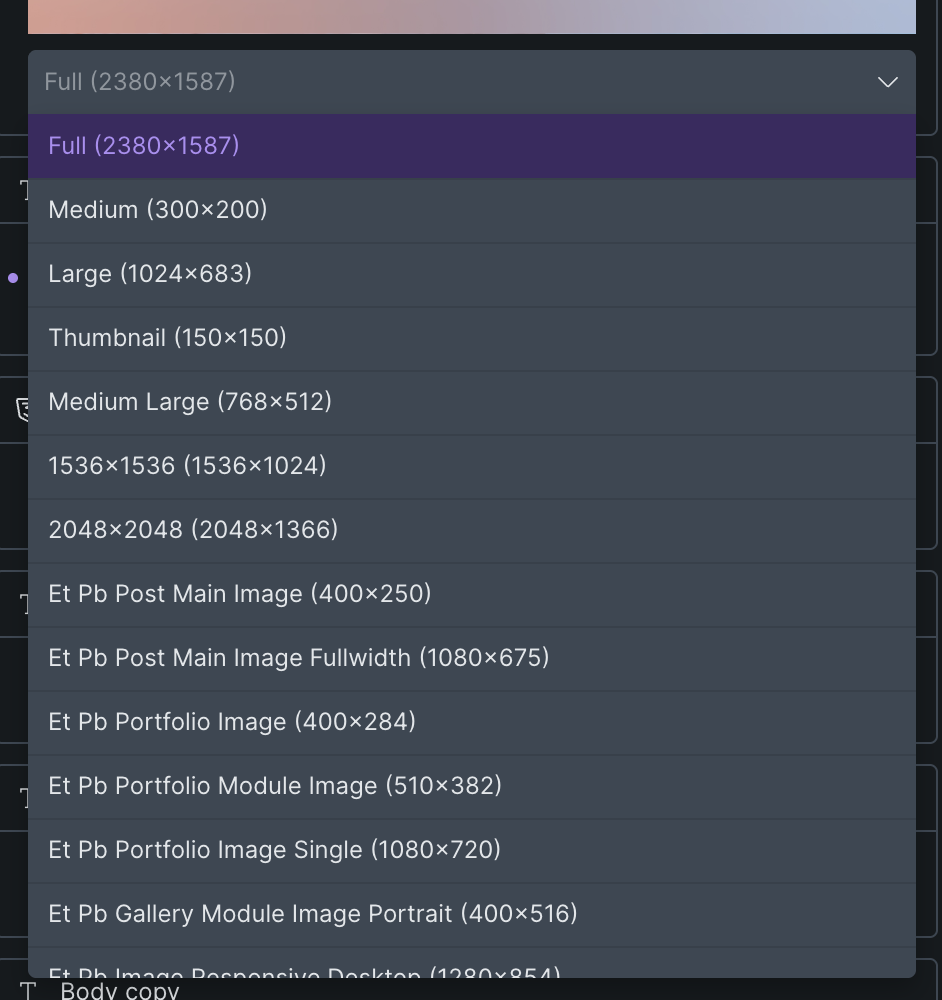
I don’t know if this is Bricks or native WP behaviour, but whenever I set an image, the builder defaults to a smaller, compressed image size instead of ‘Full’. I don’t mind the auto-generation and option of these additional image sizes, which is useful at times — but I want the default selection to be ‘Full’. I prepare and compress my own webp assets outside of Bricks, and the default selection of a smaller, compressed version of my images (usually 1024x____, it seems) means I have to remember to manually switch it back to ‘Full’ every time I add an image, lest my images come out all blurry in an unnecessary and unwanted compression.
I have untoggled ‘Create custom sizes’ in the Settings and am still encountering this issue. An additional option in the Bricks settings to cancel this feature and hide that dropdown from the image settings, or simply the option to keep displaying these custom image sizes but set the default to ‘Full’, would be invaluable.
First, it looks like you still have image sizes within your database from when you used Divi.
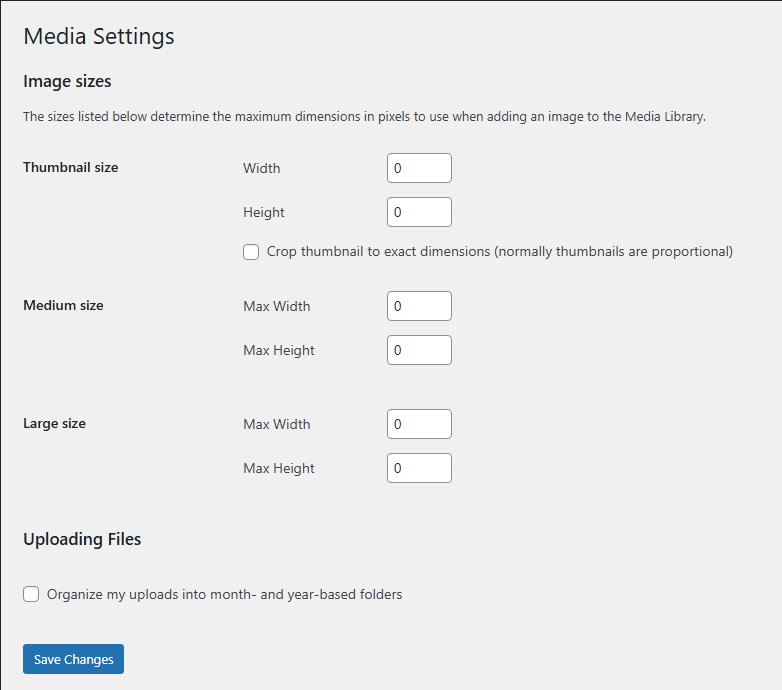
Second, you can control this two ways, 1. You can disable Image Sizes within your Media Settings in WP. 2. You can add a snippet of code to your functions file to control what images sizes you may use.
I couldn’t seem to find an option in the WP settings to toggle default / disable image sizes. However, based on your recommendation, I got Claude to generate this PHP code snippet for me, which switches the default selection for image sizes to ‘Full’ in the Bricks builder. Wanted to post it here for others to use.
// Force “Full Size” as default in native WP media uploader
function set_default_image_size() {
return ‘full’;
}
add_filter( ‘image_size_default’, ‘set_default_image_size’ );
// Force all images to full size on the frontend (recursion-safe)
function force_full_size_images( $image, $attachment_id, $size ) {
if ( is_admin() || wp_doing_ajax() ) {
return $image;
}
if ( $size === ‘full’ ) {
return $image;
}
remove_filter( ‘wp_get_attachment_image_src’, ‘force_full_size_images’, 10 );
$full_image = wp_get_attachment_image_src( $attachment_id, ‘full’ );
add_filter( ‘wp_get_attachment_image_src’, ‘force_full_size_images’, 10, 3 );
return $full_image ? $full_image : $image;
}
add_filter( ‘wp_get_attachment_image_src’, ‘force_full_size_images’, 10, 3 );
// Also intercept the downsize filter as a fallback
function force_full_size_downsize( $downsize, $id, $size ) {
if ( is_admin() || wp_doing_ajax() ) {
return $downsize;
}
if ( $size !== ‘full’ ) {
return image_downsize( $id, ‘full’ );
}
return $downsize;
}
add_filter( ‘image_downsize’, ‘force_full_size_downsize’, 10, 3 );
————————————–
In addition to this, I also then ran a plugin called ‘Regenerate Thumbnails’ to clear out any redundant auto-generated image sizes from my media library — saved around 3GB of space.
Nice work, looks like you have gotten it dialed in. =]
As for the settings, if you go to settings > media and then zero out all the values, that stops the regenerations of all the variable sizes. For me, I also like to unchecked the folder creation, as that is a bit of a pain – in then just puts the images in one folder.